
How to connect:
Near the upper left corner of the browser page, select the Microsoft 365 app launcher
- From the menu that opens, select SharePoint or Teams, and then select the site with the files you want to sync.
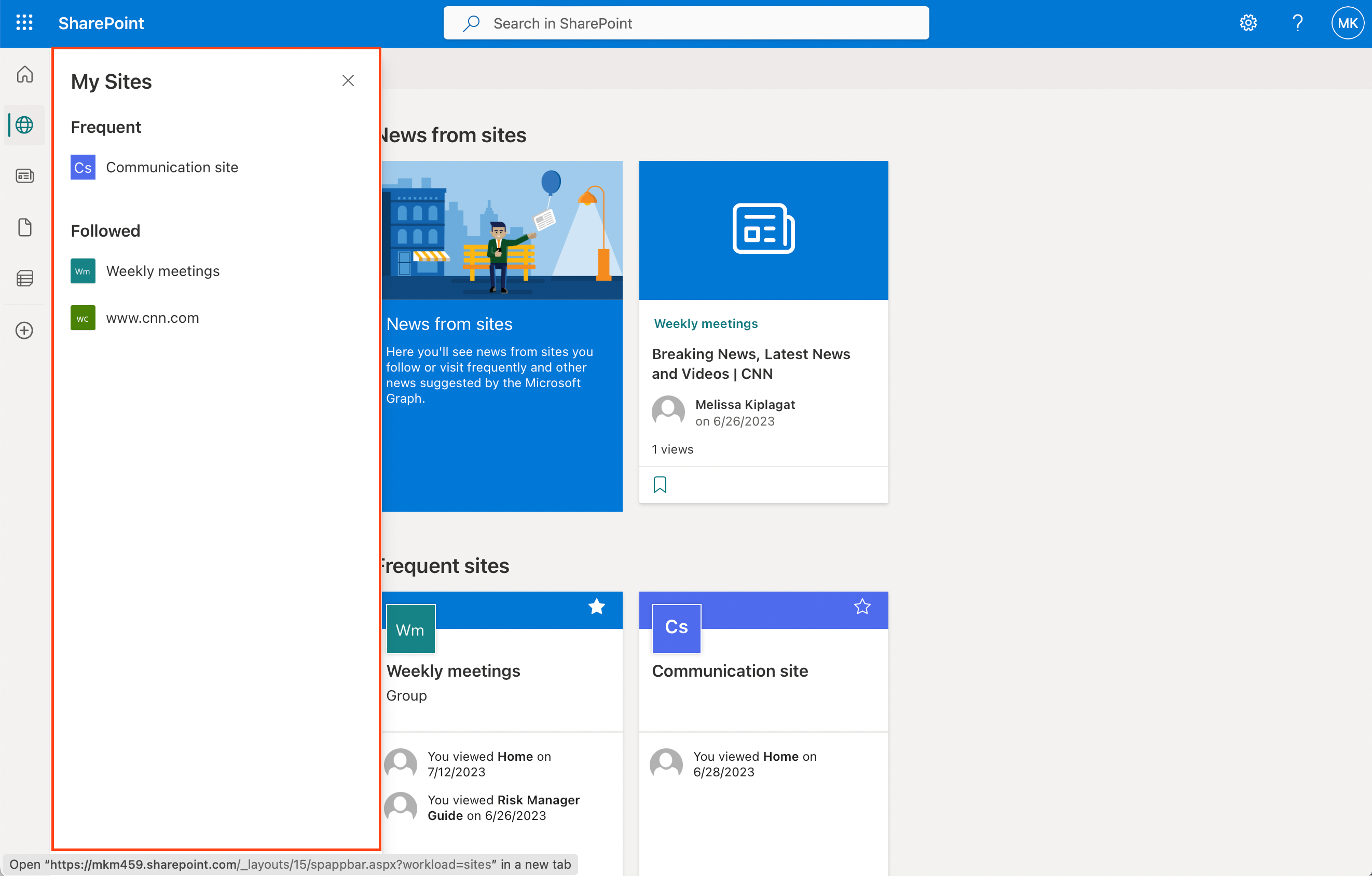
- Select Documents or navigate to the subfolder you want to sync.
Select Sync. (You only need to do this once on a computer to set up syncing on that computer. After you set up syncing, the files sync automatically.)
![[2 Ways] How to Sync SharePoint Library with OneDrive?](https://www.multcloud.com/screenshot/en/others-1/sharepoint/sync-in-sharepoint-online.png)
If your browser requests permission to use "Microsoft OneDrive," confirm that this is okay.
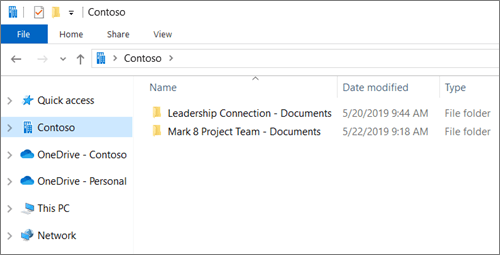
The files then sync to a folder on your PC that has the name of your organization
5. To sync the files on another computer, go to that computer, and follow these steps again.
Please note: as long as synchronization is active, all actions you make in File Explorer will also apply to the SharePoint environment.
How to deconnect:
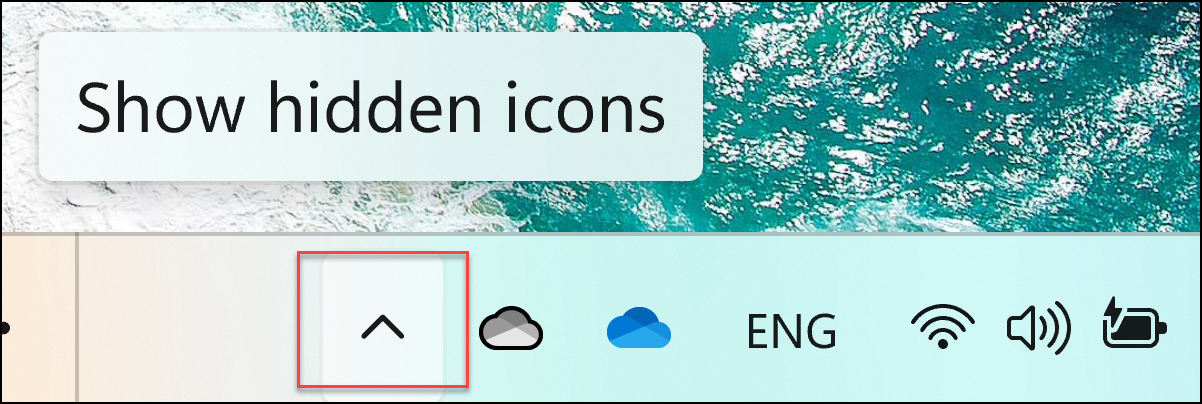
Select the blue OneDrive cloud icon in the Windows taskbar notification area.
(You may need to select the Show hidden icons arrow next to the notification area for the OneDrive icon to appear. If the icon doesn't appear in the notification area, OneDrive might not be running. Select Start, enter OneDrive in the search box, and then select OneDrive in the search results.)
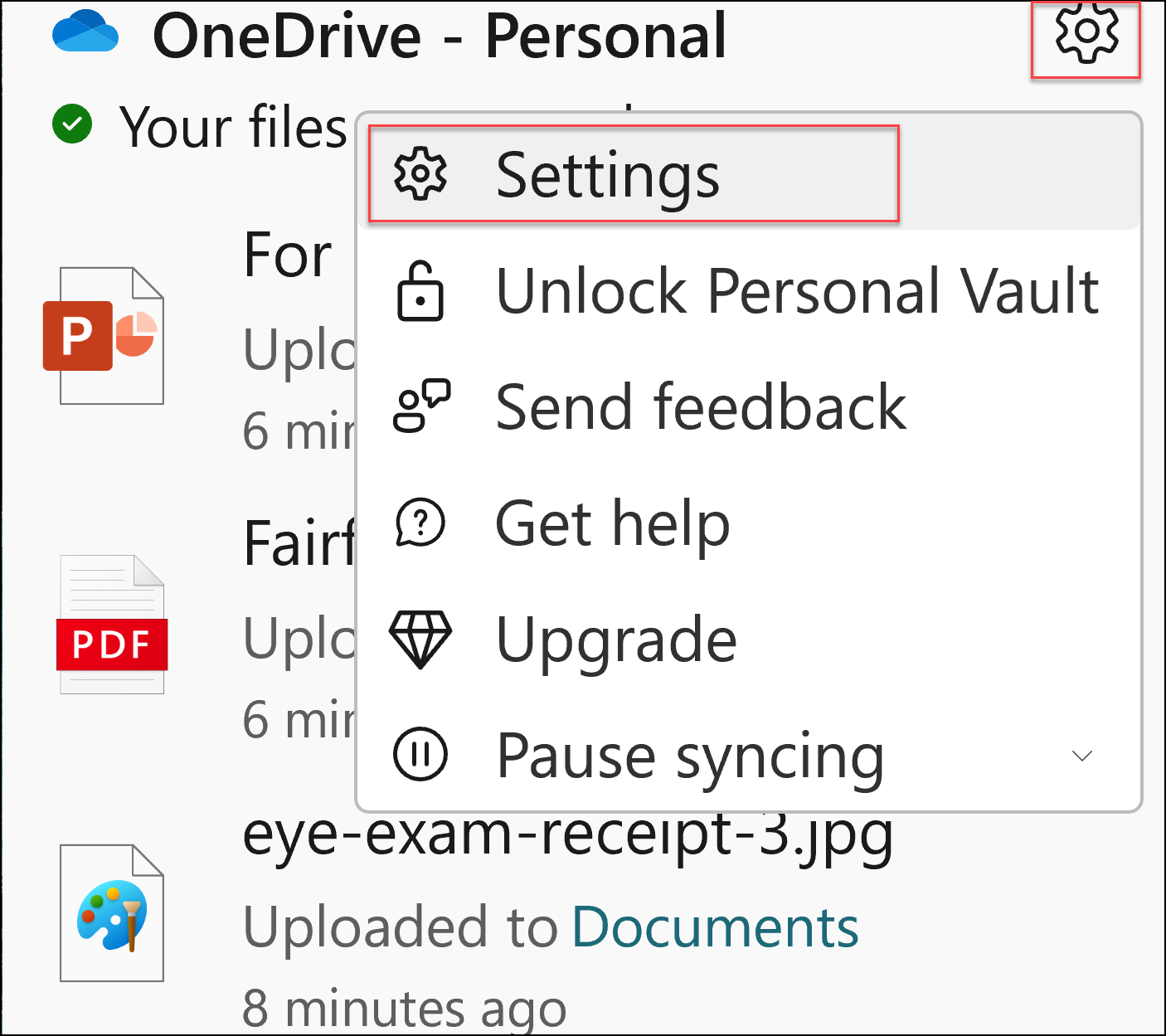
Select > Settings.
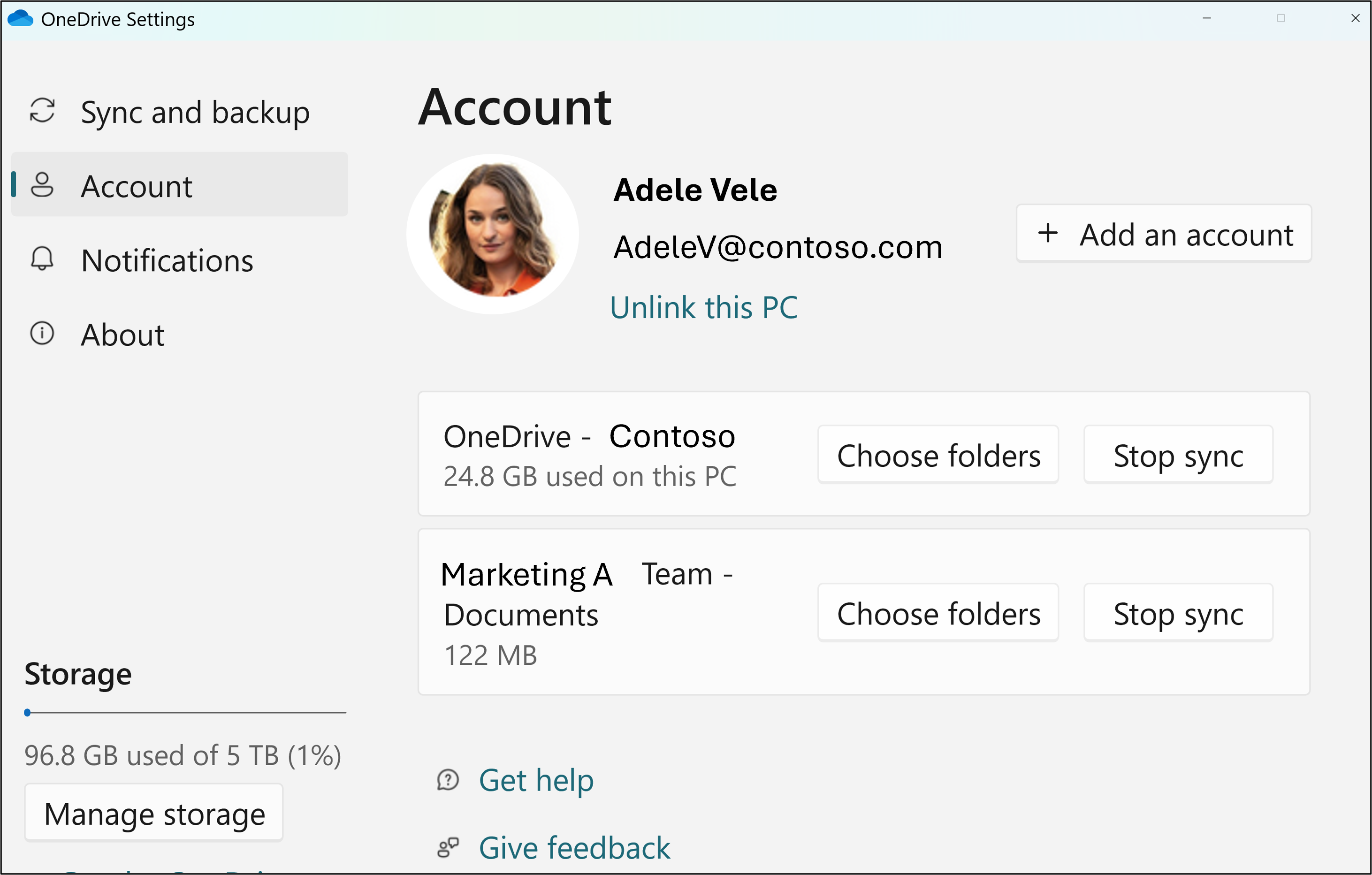
To see a list of all your syncing sites, select the Account tab.
- To change the folders that you're syncing, select Choose folders for that library, and then select the folders that you want to sync. To stop syncing a site, select Stop sync next to the site. (Copies of the files remain on your computer. You can delete them if you want.)
When you delete documents in File Explorer after synchronization has been stopped, they will still remain on SharePoint.
Please note: as long as synchronization is active, all actions you make in File Explorer will also apply to the SharePoint environment.


Comments
0 comments
Article is closed for comments.