
Table of Contents
1.1 Sign in with your email address
2.1 Importing from your browsers
2.2 Importing from another source (CSV, TXT, …)
3 Installing the browser extension
3.1 Signing in to the extension
4 Activating Two-Factor Authentication (2FA)
7.1 Delete the exported password file
7.2 Activate 2FA within Keeper
8 Using Keeper to store 2FA codes
8.1 What does Keeper do with 2FA codes?
8.2 Why store 2FA codes in Keeper?
8.3 Adding 2FA codes via the browser extension
8.4 Manual addition (without QR code)
8.5 How does it work during login?
8.7 Demo: Adding a 2FA code in Keeper
This manual guides you step-by-step in using Keeper password manager.
You do not need technical knowledge: just follow the steps as described.
Keeper helps you work safely, quickly, and effortlessly with passwords and 2FA codes.
1 Invitation and Sign-In
You will receive an email invitation to activate your personal Keeper vault.
This vault will later be used to securely store all your business passwords.
1.1 Sign in with your email address
Click the activation link in the invitation email.
Enter your business email address.
1.2 Automatic sign-in via SSO
Keeper integrates with Microsoft.
This means you are automatically signed in with the same account you use daily for Outlook, Teams, etc.
Important to know:
- You don’t have to remember a new password
- Everything follows Microsoft’s security policies
- This is the easiest and safest way to work
2 Importing your passwords
To get started smoothly, you can import your existing passwords into Keeper.
Keeper supports importing from:
- Your web browser (Edge, Chrome, Firefox, Opera & Internet Explorer)
- Other password managers (such as Bitwarden)
- A .csv file with passwords
2.1 Importing from your browsers
2.2 Importing from another source (CSV, TXT, …)
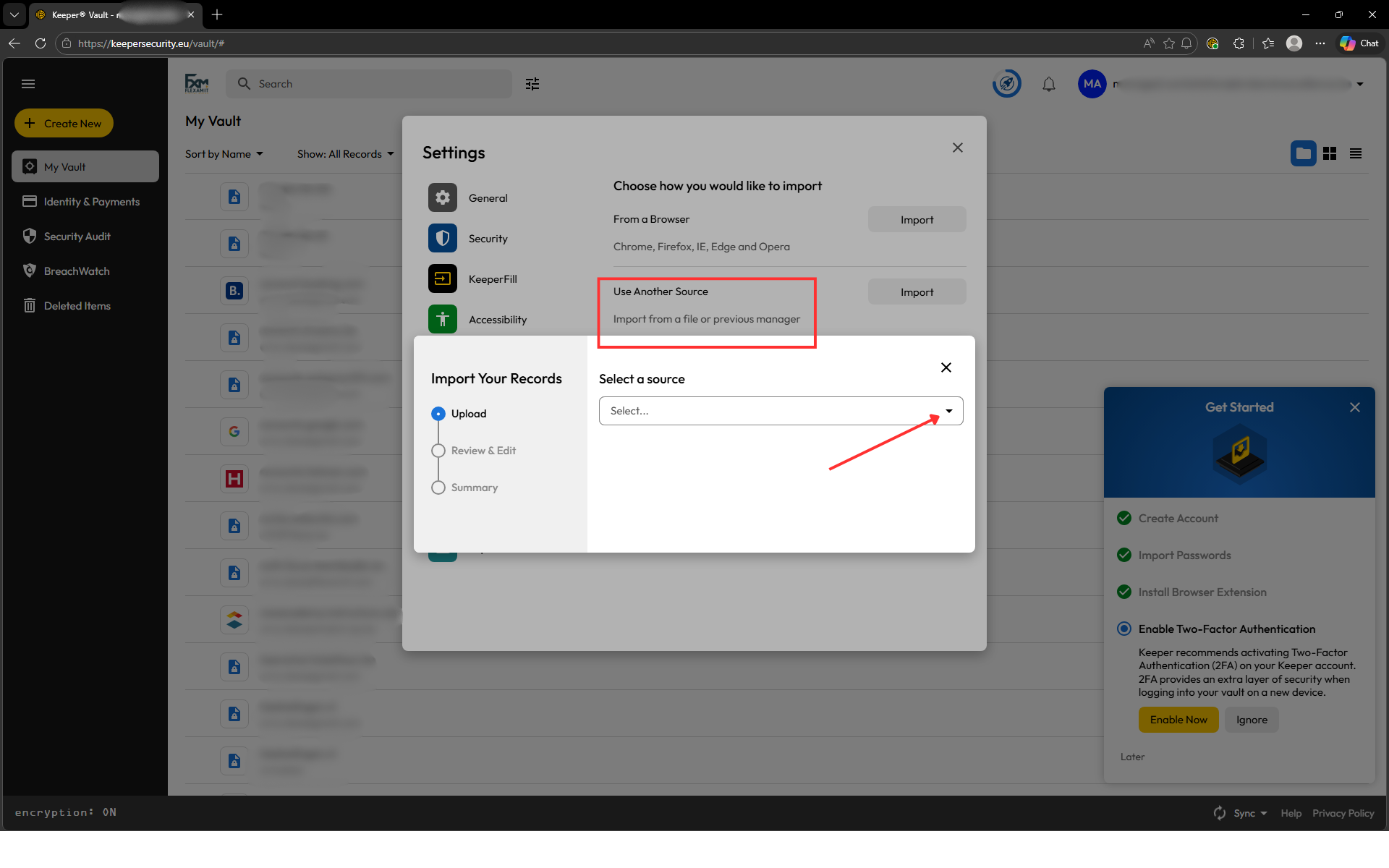
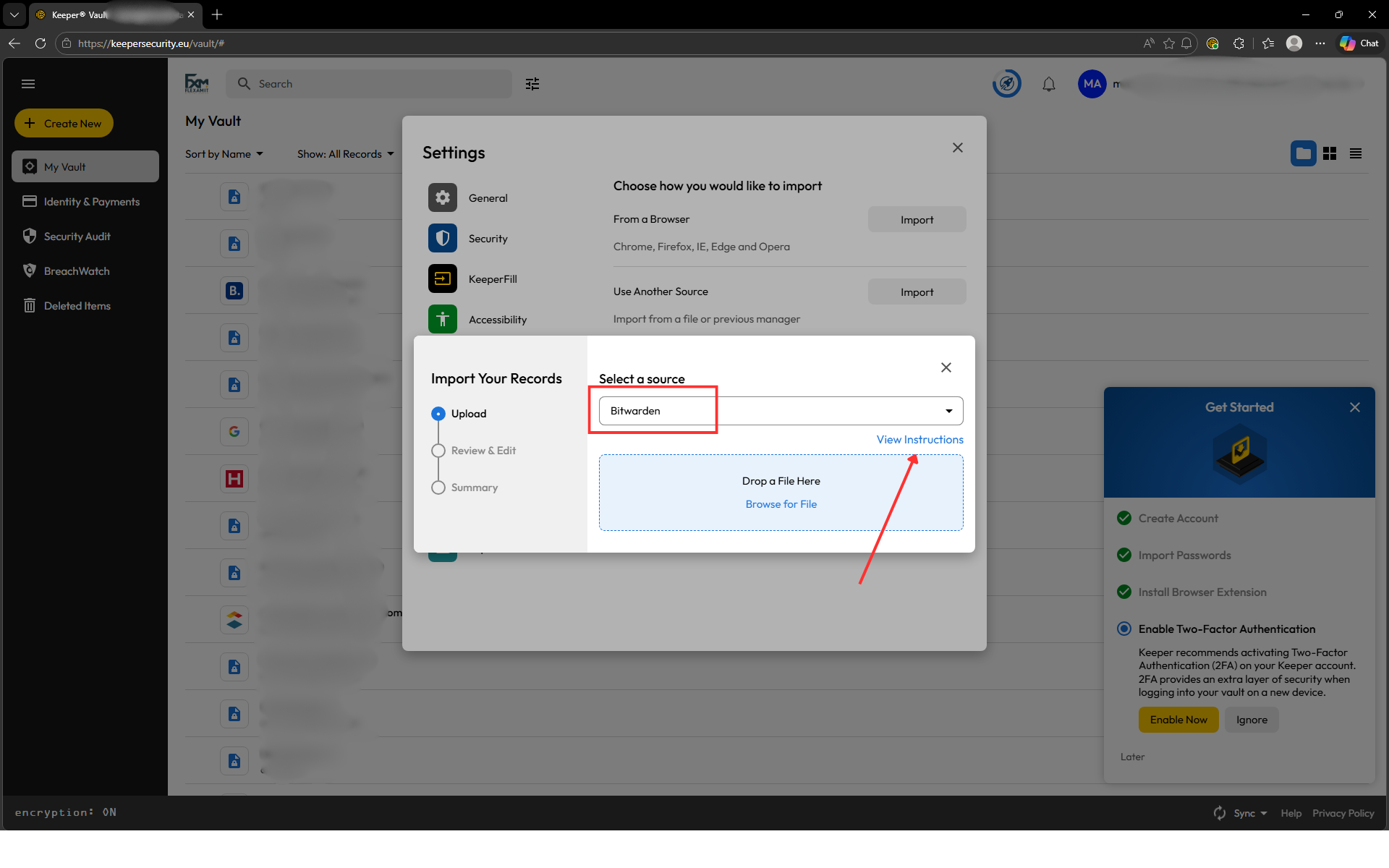
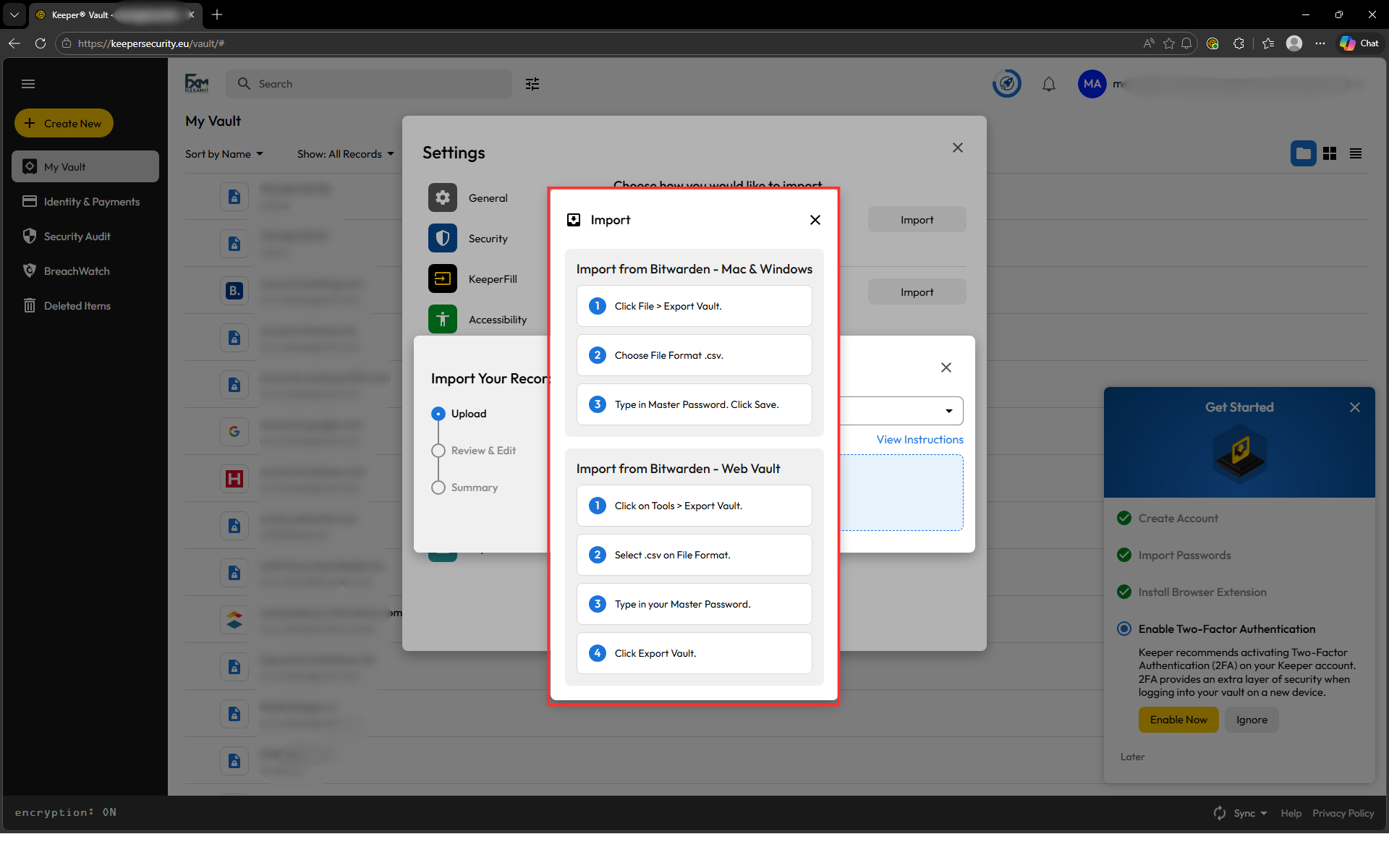
Example Bitwarden
Important security note
The exported CSV file contains all your passwords in readable form.
Delete this file immediately after the import is completed.
Never keep it on your computer, desktop, or downloads folder.
3 Installing the browser extension
The Keeper browser extension ensures that:
- Passwords are filled in automatically
- 2FA codes appear automatically
- You can sign in faster and more easily
The extension may already be installed in Edge.
If you use Chrome, you will need to install the extension yourself.
3.1 Signing in to the extension
Signing in works the same as the web application.
You won’t notice anything extra here: Microsoft SSO handles everything automatically.
- Click the Keeper icon in your browser
- Enter your business email address
- You are automatically signed in via Microsoft SSO
4 Activating Two-Factor Authentication (2FA)
This extra security is like a “lock on your vault”.
You won’t be bothered by it daily.
You only use this:
- On a new device
- After clearing browser data
- In exceptional security situations
Select here how long you want your safe to remain logged in.
You don’t need to keep the backup codes: IT can always perform a reset if needed.
5 Biometric login
You can enable biometric login (e.g. via fingerprint or facial recognition).
Because you use SSO, this has limited impact.
You may skip this if you wish, but enabling it is certainly allowed.
6 Enabling notifications
During Keeper setup, you may encounter the step “Enable notifications.”
With this option, you will receive notifications about:
- Shared items
- Access requests
- Activity in your Keeper vault
When you click “Set up,” you might get a browser notification asking:
“Keepersecurity.eu wants to show notifications”
You will have two options:
- Allow → This gives permission to receive notifications
- Block → This disables notifications
Recommended: click “Allow” so you receive important notifications about your Keeper vault.
7 Important notes
To ensure a smooth and secure experience with Keeper, please keep the following in mind:
7.1 Delete the exported password file
- Never keep a .csv file with passwords
- Delete it immediately after import
This is the most important security rule.
7.2 Activate 2FA within Keeper
- Microsoft SSO secures your login
- Extra 2FA protects your vault itself
Together they provide a very high level of security.
7.3 Explore settings
In Keeper you can configure, among other things:
- How long your vault stays unlocked
- Whether passwords are filled in automatically
- Display and usage preferences
Take a moment to adjust this to your working style.
8 Using Keeper to store 2FA codes
Keeper can also generate 2FA codes (TOTP), like Google Authenticator or Microsoft Authenticator.
Result:
- Password
- 2FA code
- Everything in one record
Faster, simpler, and safer.
8.1 What does Keeper do with 2FA codes?
Keeper:
- Stores 2FA codes securely encrypted
- Automatically generates the correct code
- Synchronises this across all your devices
You no longer need a separate authenticator app.
8.2 Why store 2FA codes in Keeper?
- Everything in one place
- No loss when getting a new device
- Automatic filling during sign-in
- Safer than SMS codes
Ideal for professional use.
8.3 Adding 2FA codes via the browser extension
Steps:
- Go to the website where you want to enable 2FA.
- Start the 2FA setup process on that website.
- When the QR code appears, open the Keeper browser extension.
- Open the options of your record and select ‘Scan 2FA code’
- The extension automatically detects the QR code on the page.
- Keeper added the 2FA code to your record.
- Copy the 2FA code in your record and paste it on your web page.
From now on, Keeper automatically generates the 6-digit codes.
8.4 Manual addition (without QR code)
Some websites show a secret key instead of a QR code.
- Copy the secret key.
- Open the Keeper record of the website.
- Add a new field: Two-Factor Code (TOTP).
- Paste the secret key.
- Keeper automatically generates the 2FA codes.
Keeper does the rest automatically.
8.5 How does it work during login?
When you log in on a website:
- Keeper fills in your username and password
- Keeper automatically fills in the 2FA code (if supported)
You don’t need to open a separate app.
8.6 Important note
Your Microsoft sign-in remains always separate from the 2FA codes you store in Keeper.
Keeper only stores codes for websites and applications that you add yourself.
8.7 Demo: Adding a 2FA code in Keeper
FLEXAMIT has provided a demo video showing step-by-step how to add a 2FA code in Keeper.
Would you prefer to follow this process visually?
Feel free to request the demo, it makes setup even easier and clearer.
9 Cleaning up your vault
A tidy vault helps you work faster and avoid mistakes.
Think of this as a short digital cleanup, once a year is usually enough.
Recommendations:
- Remove duplicate or old accounts
- Update weak or reused passwords
- Check that all important accounts are present
Do this occasionally, it takes little time and increases your security.
Comments
0 comments
Article is closed for comments.